Add an Android Studio icon on Ubuntu

How to add a desktop shortcut on Gnome 3 to launch Android Studio (Ubuntu 16.04)
This tip explains two ways to add a desktop icon to launch Android Studio from a Gnome 3 environment: activate or create icons on the desktop.
Prerequisites
- Ubuntu 16
- Gnome 3
- Android Studio installed
1/ Activate icons on the desktop
Not all environments on Linux allow desktop icons by default and neither does Gnome 3 under Ubuntu 16.04.
To allow icons you should use the gnome-tweak-tool application
First, if gnome-tweak-tool is not available on your system type the following command from a terminal:
$ sudo apt-get install gnome-tweak-tool
Then launch the gnome-tweak-tool application :
$ gnome-tweak-tool
Finally, in the menu of the application go to the Desktop section and activate the icons.
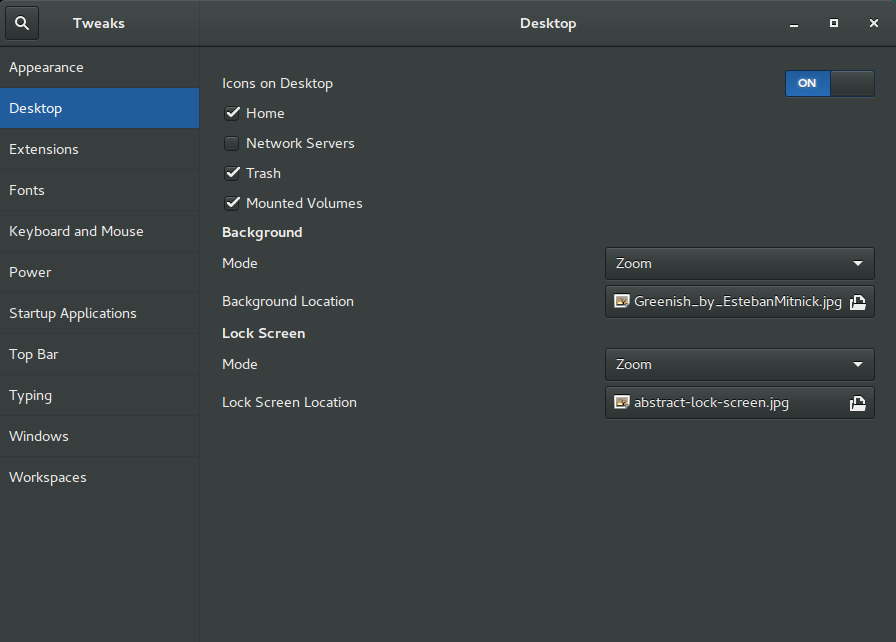
Source: https://www.linuxhelp.com/how-to-install-gnome-tweak-tool-on-ubuntu-16-04
2/ Create the icon
There are two ways to create an icon:
- Using a .desktop extension file.
- Using a script
A/ Using a .desktop file
A.1/ Create an android.desktop file
In folder "\~/Desktop" (can be called differently depending on the language of your environment like "\~/Bureau" for French), create a file called android.desktop. In this file put the following text:
[Desktop Entry]
Version=1.0
Type=Application
Name=Android Studio
Comment=Android Studio
Exec=/opt/android-studio/bin/studio.sh
Icon=emblem-dropbox-syncing
Path=
Terminal=false
StartupNotify=false
Adapt the code above regarding the Android Studio installation path ("Exec" field). On our environment Android Studio application is located in "/opt/android-studio" and the script to launch it is "/opt/android-studio/bin/studio.sh"
A.2/ Authorize file execution
If a message Untrusted application launcher is displayed on executing the script from the desktop, it is necessary to allow the .desktop file to be executed. Proceed as follows:
- Right-click on the previously icon and select the menu Properties.
- Select the tab Permissions
- Tick the Execute box "Allow executing file as program"
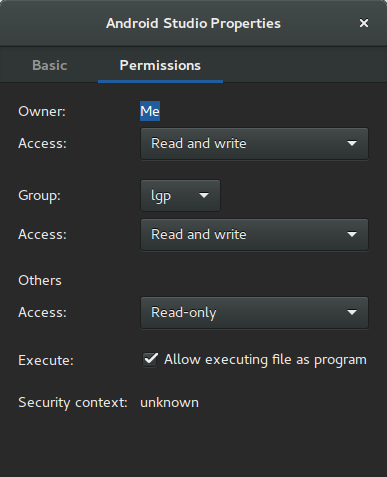
Here you are! A neat icon is now available on your desktop to launch Android Studio.
You can proceed to the lessons of the Developer Center section now or read the Tips and tricks articles around Android Studio use.
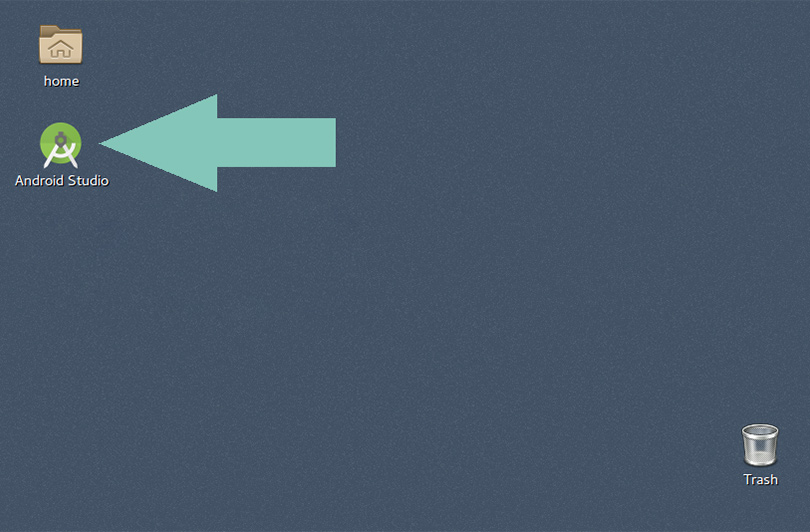
B/ Using a script file
B.1/ Create a file android.sh
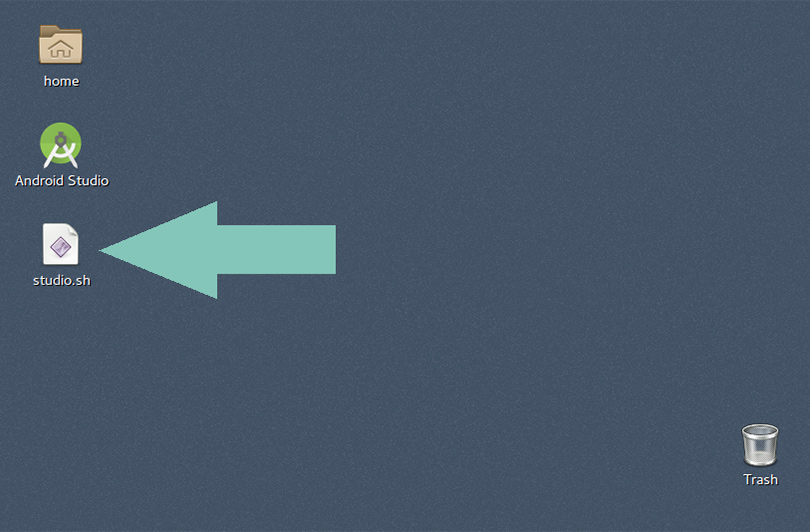
Create a script file on the "\~/Desktop" folder, name this file "android.sh" and add the following content:
#!/bin/bash
nohup /opt/android-studio/bin/studio.sh &
You could also create a symbolic link to the “studio.sh” script which is located in "/opt/android-studio/bin/studio.sh" on our install.
$ cd \~/Desktop
$ ln -s /opt/android-studio/bin/studio.sh studio.sh
B.2/ Allow script execution
To increase security Gnome does not activate a script files from the graphical environment. You need to allow this execution manually.
- Use dconf-editor application ( Hit Alt+F2, type dconf-editor and hit Enter );
- In dconf editor window go to menu org > gnome > nautilus > preferences;
- On the right window pane select entry executable-text-activation;
-
Click on the field on the right and from the drop-down menu that is displayed select:
-
launch to launch scripts as programs
or
-
ask to ask what to do via a dialogue
-
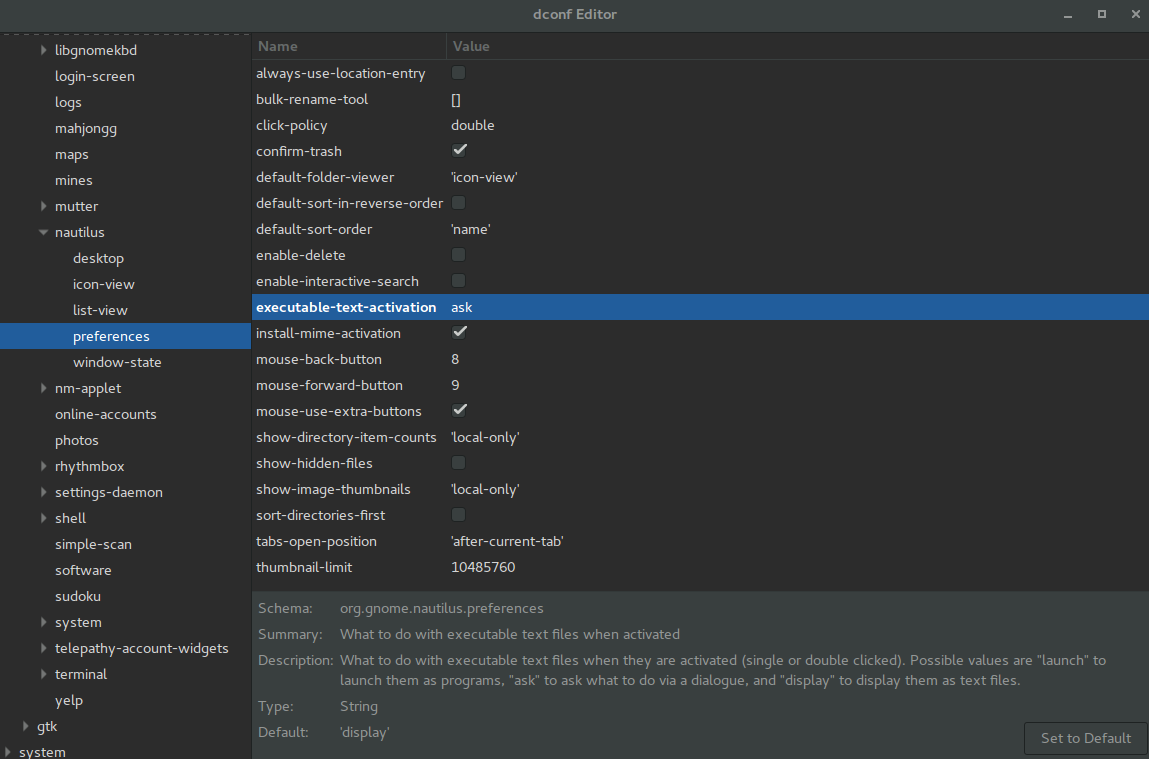
Now you have a shortcut on your desktop to launch your Android Studio IDE. Enjoy and explore the lessons of the Developer Center section or read the Tips and tricks articles around Android Studio use.
Add a shortcut in the launcher
If you prefer to access Android Studio from the dash or add an icon as a favourite in the launcher, please read the following article : Add an Android Studio shortcut to the app launcher
Let's go further!
 Add an Android Studio shortcut to the app launcher
How to add a shortcut to the app launcher on Ubuntu to launch Android Studio
Add an Android Studio shortcut to the app launcher
How to add a shortcut to the app launcher on Ubuntu to launch Android Studio
 Android Studio Tips and tricks
Read Android Studio tips and tricks articles: improve APK install time, intention actions and shortcuts, logging, ...
Android Studio Tips and tricks
Read Android Studio tips and tricks articles: improve APK install time, intention actions and shortcuts, logging, ...
 How to create a robot Android app
Discover how to build Android apps with our tutorials and run them on a simulated Pepper robot from your fresh Android Studio install.
How to create a robot Android app
Discover how to build Android apps with our tutorials and run them on a simulated Pepper robot from your fresh Android Studio install.