Add an Android Studio shortcut to the app launcher on Ubuntu

How to add a launcher shortcut on Gnome 3 to launch Android Studio (Ubuntu 16.04)
This tip explains how to add a shortcut to the app launcher to launch Android Studio on Ubuntu.
Prerequisites
- Ubuntu 16
- Gnome 3
- Android Studio installed
Add a shortcut in the launcher
If you want to access Android Studio from the dash or add an icon as a favourite in the launcher, this is pretty simple. Follow the steps below :
- Open Android Studio,
- Click on Tools menu -> Create Desktop Entry.
This should create an entry on the dash.
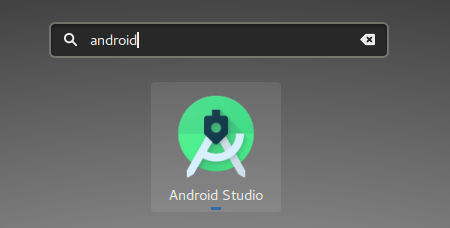
- Launch Android Studio
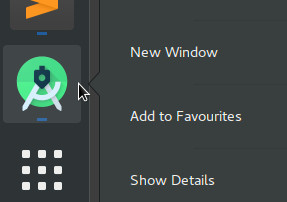
- On the launcher, right click on the Android Studio logo
- In the menu, click on Add to Favourites
The Android Studio icon should now be available in the application launcher.
Add a desktop shortcut icon
If you prefer to access Android Studio clicking on an icon from your desktop from a Gnome 3 environment, please read the following article: Add an Android Studio icon on Ubuntu
Let's go further!
 Android Studio Tips and tricks
Read Android Studio tips and tricks: improve APK install time, intention actions and shortcuts, logging, ...
Android Studio Tips and tricks
Read Android Studio tips and tricks: improve APK install time, intention actions and shortcuts, logging, ...
 Ubuntu 18 and Pepper QiSDK Emulator troubleshooting
A trick for Ubuntu 18 users to launch the QiSDK Robot emulator
Ubuntu 18 and Pepper QiSDK Emulator troubleshooting
A trick for Ubuntu 18 users to launch the QiSDK Robot emulator
 How to create a robot Android app
Discover how to build Android apps with our tutorials and run them on a simulated Pepper robot from your fresh Android Studio install.
How to create a robot Android app
Discover how to build Android apps with our tutorials and run them on a simulated Pepper robot from your fresh Android Studio install.