Intention actions, the useful contextual help in Android Studio

How to use the contextual shortcut Alt+Enter or Option+Enter
Among many keyboard shortcuts, Android Studio provides a very useful context aware shortcut to manage intention actions: Alt+Enter (non Mac world) or Option+Enter (Mac world)
Prerequisites
Suggest improvements for your code
As you work in Android Studio, IntelliJ IDEA integrated development editor analyzes your code, searches for ways to optimize it, and detects potential and actual problems.
As soon as the IDE finds a way to alter your code, it displays a yellow bulb icon in the editor next to the current line. If a problem is detected it displays a red bulb icon instead and prompts you to select an associated fix.
The IntelliJ IDEA yellow bulb icon 
The IntelliJ IDEA red bulb icon 
The IDE highlights the possible improvements or errors with a squiggly red line, points unresolved references by changing font color to red, highlights old anonymous classes in grey, etc.
Placing the cursor on the red highlighted section and using Alt+Enter or clicking the bulb icon you can view available intention actions for this unit of code.
Depending on where your cursor is located when you use the shortcut you get a custom list of actions that makes your life easier.
There are many situations where you would be able to use this Alt+Enter or Option+Enter feature. Let's illustrate in Pepper app creation situations.
Add missing interface methods, the speedy way
Add RobotLifecycleCallbacks methods
When you create a new project for Pepper, remember you need to "robotify" the project and implement RobotLifecycleCallbacks methods as described in Getting Started > Creating a Robot application lesson.
After adding the RobotLifecycleCallbacks statement in your MainActivity file your code should look as follow:
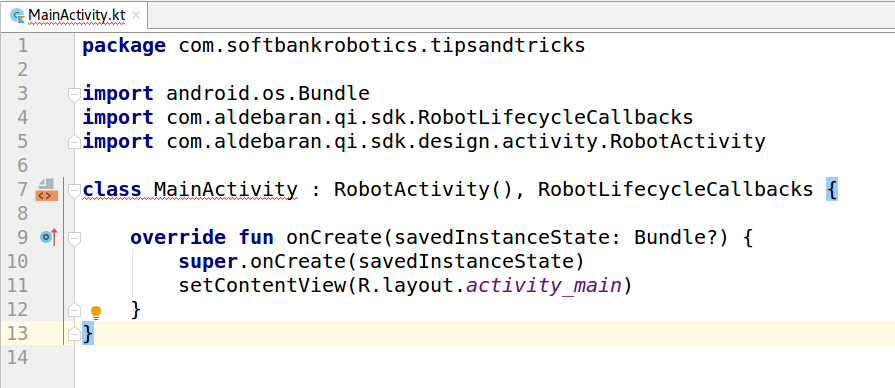
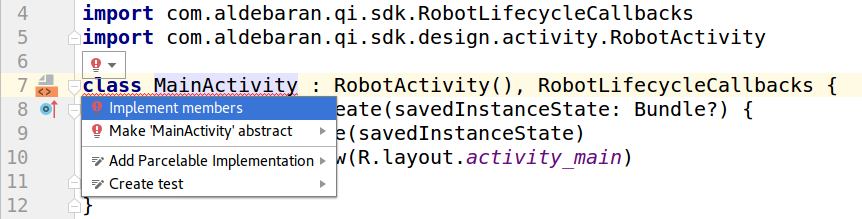
❌Note that class MainActivity will be underlined with a red squiggly line meaning there is an error. In fact you should implement the three functions of the RobotLifecycleCallbacks interface which are onRobotFocusGained, onRobotFocusRefused and onRobotFocusLost.
✔️ You can implement the 3 methods in 5 seconds using Alt+Enter instead of typing all these functions.
- Place the cursor wherever on the red squiggly underlined string
- Type Alt+Enter or Option+Enter
- Choose Implement methods in the contextual menu displayed
- On the window that pops up, select onRobotFocusGained, onRobotFocusLost and onRobotFocusRefused and validate clicking on "Ok"
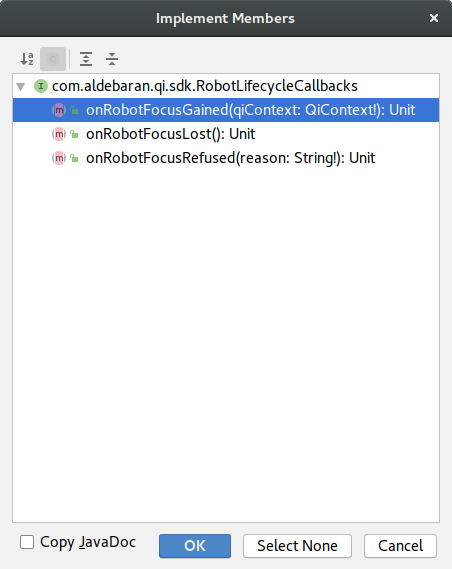
Here you are, you have quickly added the missing methods. Easy, isn't it?
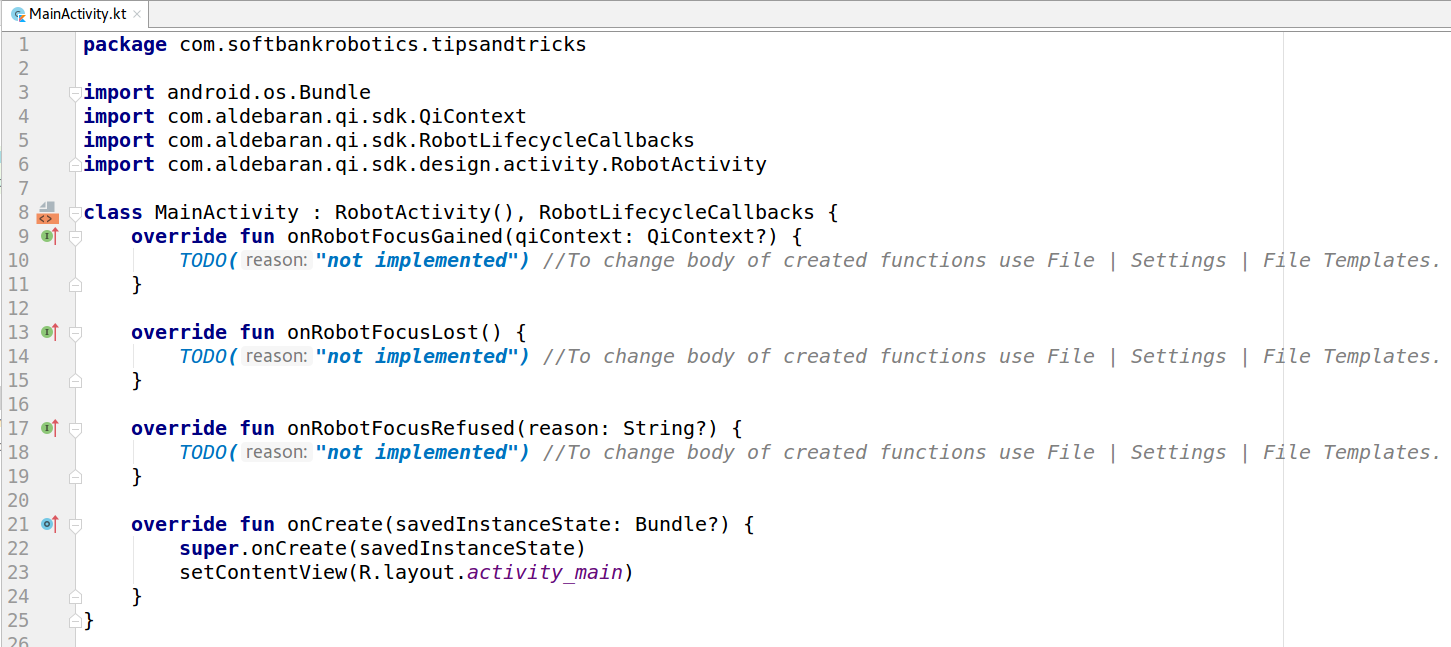
Step by step animation
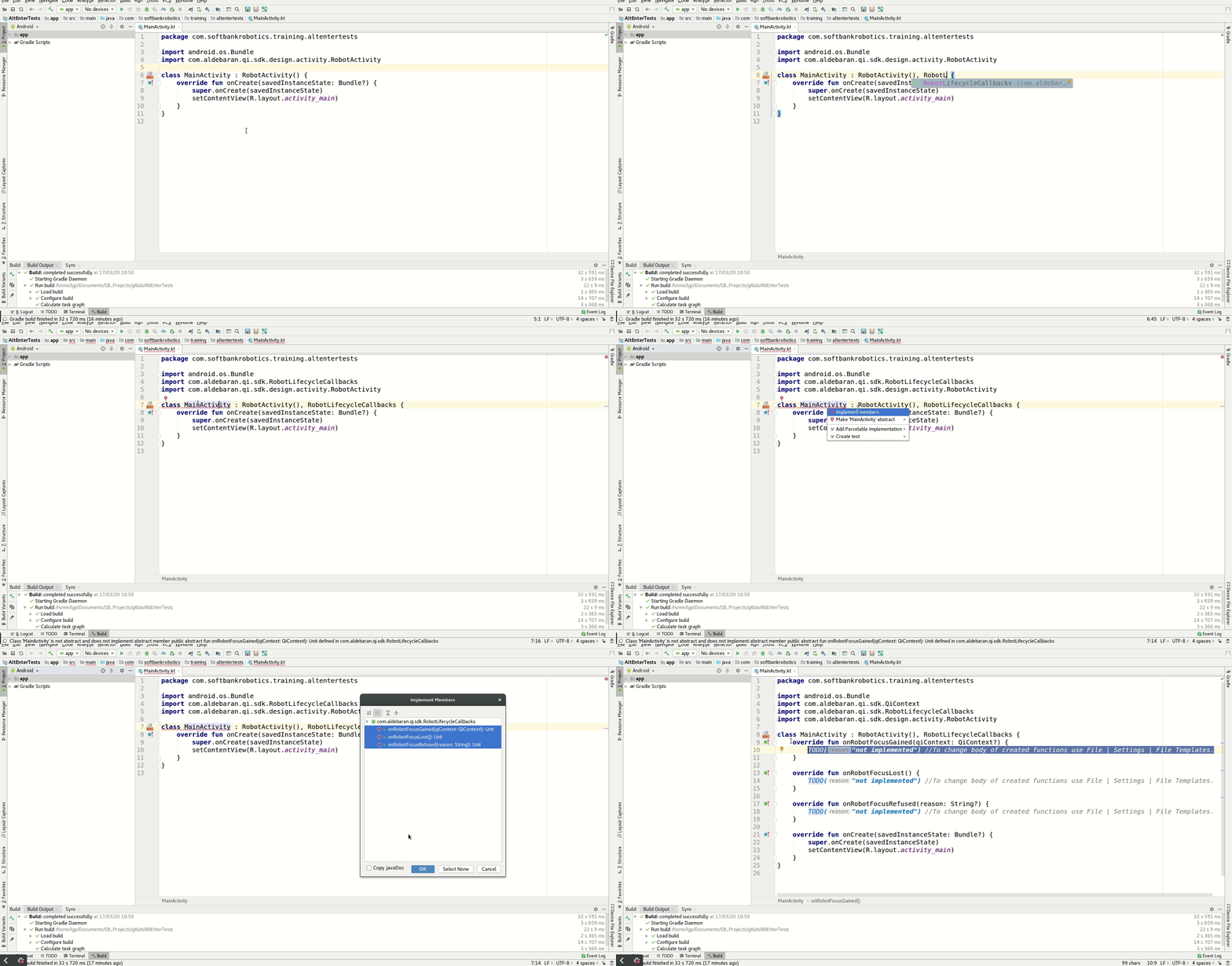
Contextual bulb
In addition to the use of Alt+Enter you can use the bulb that appears after a few seconds or typing Alt+Enter when you place the cursor on an underlined section of your code. Selecting the bulb the intentions menu is displayed with the same menus as with Alt+Enter.
Add import statements
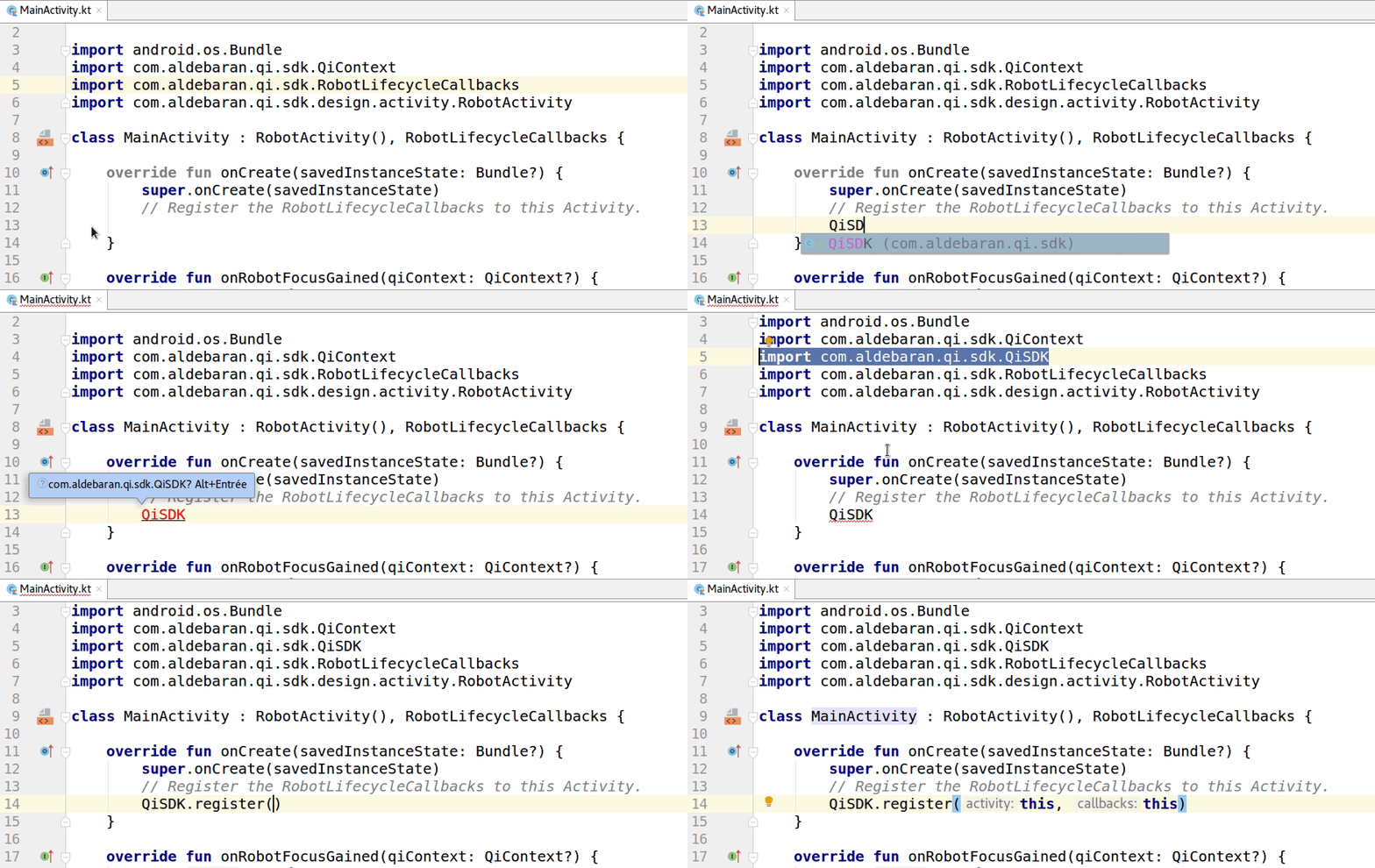
Let's illustrate the use of the intention actions menu with another example. Android Studio automatizes many actions including the proper import statements. However you may still need to add your own references to libraries.
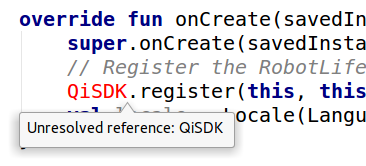
Fix Unresolved reference
The Alt+Enter shortcut on android studio will help automatically fix "Unresolved reference" error adding the import statements needed.
Don't go too fast
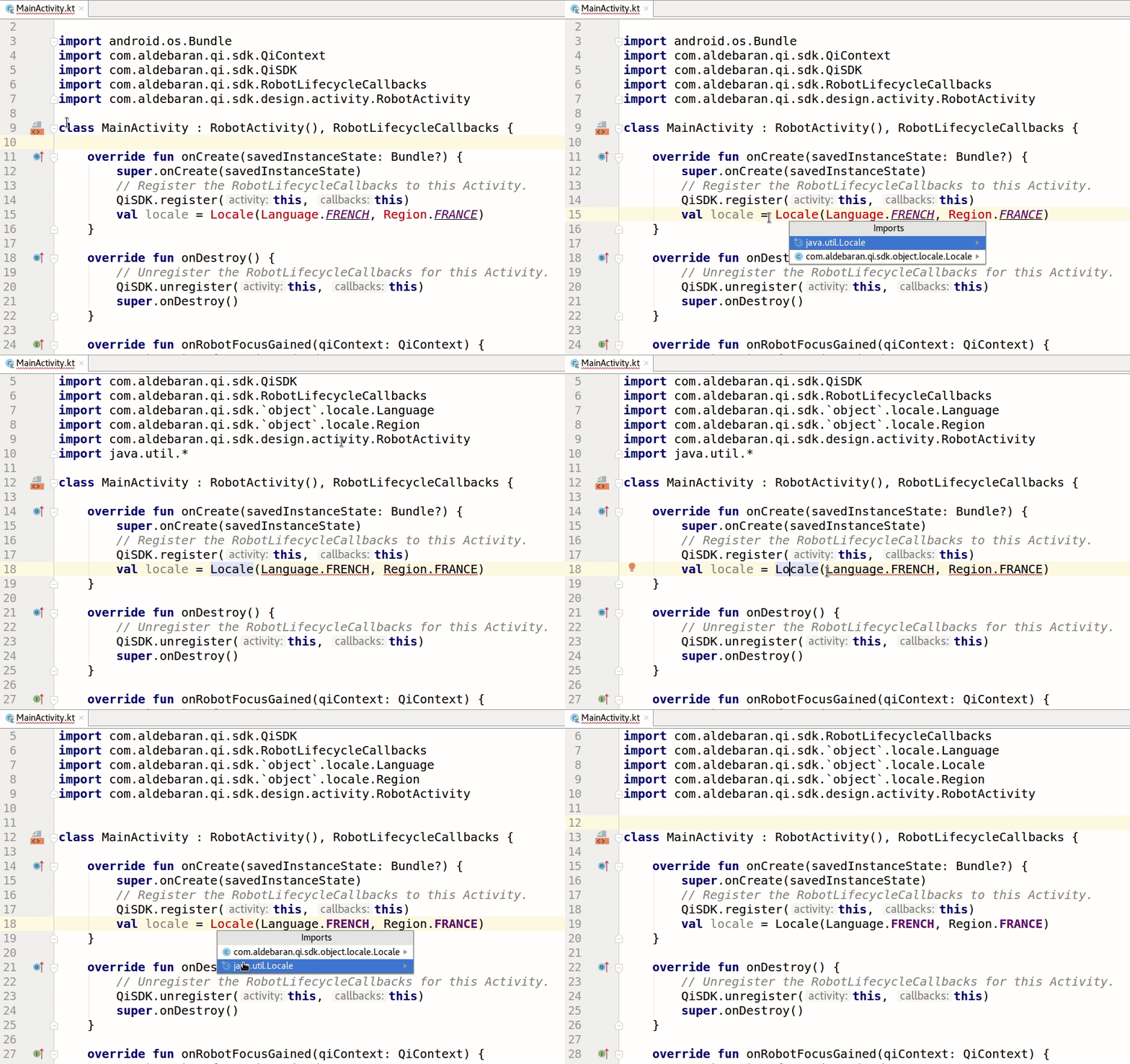
Be careful not to use Alt+Enter too fast. Some import statements may not fit your needs.
As an example com.aldebaran.qi.sdk has a Locale object as java.util library does. It is easy to mismatch when using Alt+Enter quickly. If you insert a wrong import statement, simply delete it and use Alt+Enter again.
❌ Erroneous import below, that will not work
import com.aldebaran.qi.sdk.`object`.locale.Language
import com.aldebaran.qi.sdk.`object`.locale.Region
import com.aldebaran.qi.sdk.design.activity.RobotActivity
import java.util.*

class MainActivity : RobotActivity(), RobotLifecycleCallbacks {

   override fun onCreate(savedInstanceState: Bundle?) {
       super.onCreate(savedInstanceState)
       // Register the RobotLifecycleCallbacks to this Activity.
       QiSDK.register(this, this)
       val locale = Locale(Language.ENGLISH, Region.UNITED_STATES)
   }
✔️ Correct import below
import com.aldebaran.qi.sdk.`object`.locale.Language
import com.aldebaran.qi.sdk.`object`.locale.Locale
import com.aldebaran.qi.sdk.`object`.locale.Region
import com.aldebaran.qi.sdk.design.activity.RobotActivity

class MainActivity : RobotActivity(), RobotLifecycleCallbacks {

   override fun onCreate(savedInstanceState: Bundle?) {
       super.onCreate(savedInstanceState)
       // Register the RobotLifecycleCallbacks to this Activity.
       QiSDK.register(this, this)
       val locale = Locale(Language.ENGLISH, Region.UNITED_STATES)
   }
Conclusion
There are many other useful intention actions available in Android Studio. They will help you to save time, speed up coding and take advantage of Android Studio rich environment.
Intention actions cover a wide range of situations from warnings to optimization suggestions. You can view the full list of intention actions and customize them in the Settings/Preferences dialog (File > Settings > Editor > Intentions).
How to browse list of actions and corresponding shortcuts
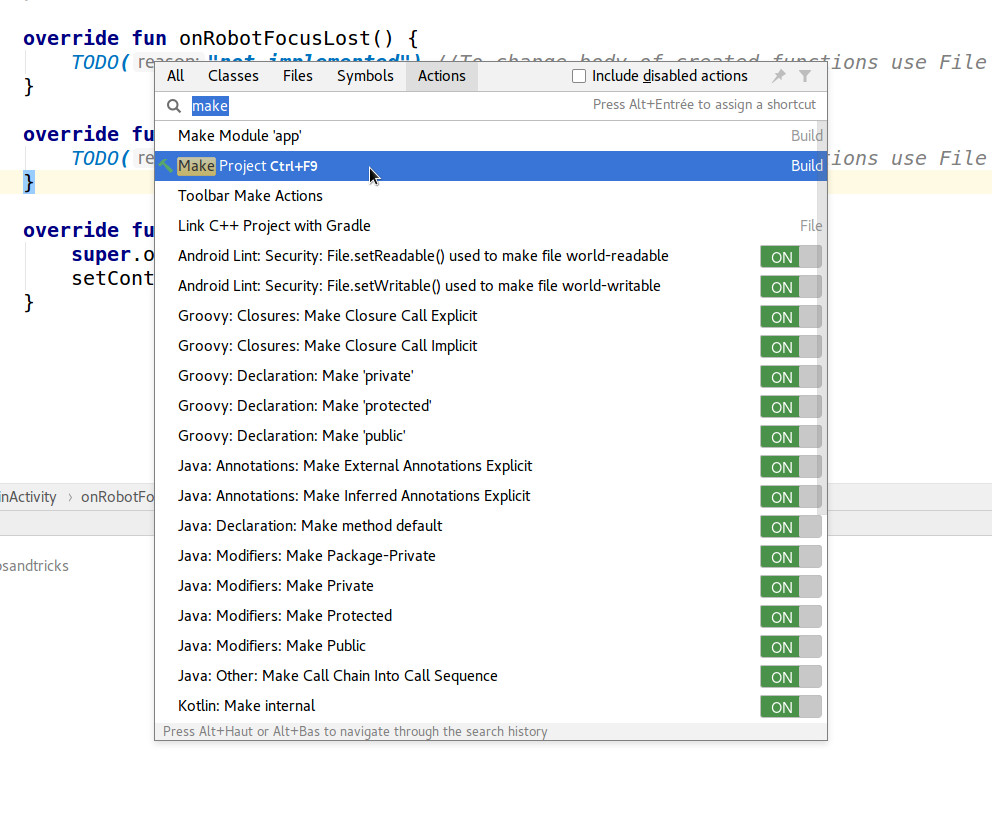
You can easily access the list of actions and the corresponding shorcut if any. To do so use the shortcut Ctrl+Shift+A or Cmd+Shift+A (Mac world). In the field of the popup, type the word you look for. Type make and you'll get the action Make project in the list with the shortcut associated Ctrl+F9 display right next to it.
Nice isn't it ?
Related Content
 QiSDK Create a robot application tutorial
This concise and very clear tutorial shows in few steps how to create a robot application from a brand new Android Studio project.
QiSDK Create a robot application tutorial
This concise and very clear tutorial shows in few steps how to create a robot application from a brand new Android Studio project.
 Jet Brains intentions actions help page
IntelliJ IDEA complementary help page.
Jet Brains intentions actions help page
IntelliJ IDEA complementary help page.
 Android Studio shortcuts
The comprehensive list of Android Studio shortcuts explained.
Android Studio shortcuts
The comprehensive list of Android Studio shortcuts explained.
 Android Studio Tips and tricks
Read Android Studio tips and tricks articles: improve APK install time, intention actions and shortcuts, logging, ...
Android Studio Tips and tricks
Read Android Studio tips and tricks articles: improve APK install time, intention actions and shortcuts, logging, ...