Initial setup
Let's start by defining the robot behavior and initiating the Android project
1 Let’s script the robot’s behaviour
In this lesson, you will make Pepper demonstrate abilities for presentation, using four kinds of actions: Speech, Animation, Tablet and Sound.
You will direct the performance like a conductor, paying close attention to the flow and the rhythm of the robot’s behaviour.
Pepper plays the leading part and here is the dialogue:
“Okay, so... making me talk is a first step, a bit like... rolling a rock. As a rock, I can make sound, and become beautiful and precious! all this thanks to you. I can’t wait for what we’re gonna do!”_
And here is the script of Pepper’s performance, including acting instructions and scene directions (i.e. pauses in the text, animations, images and sounds to act).
You can divide the whole scenario into parts. In each part Pepper plays a piece of dialogue, an animation (moves), a tablet fallback (PNG or even Lottie animation) and optionally a sound.
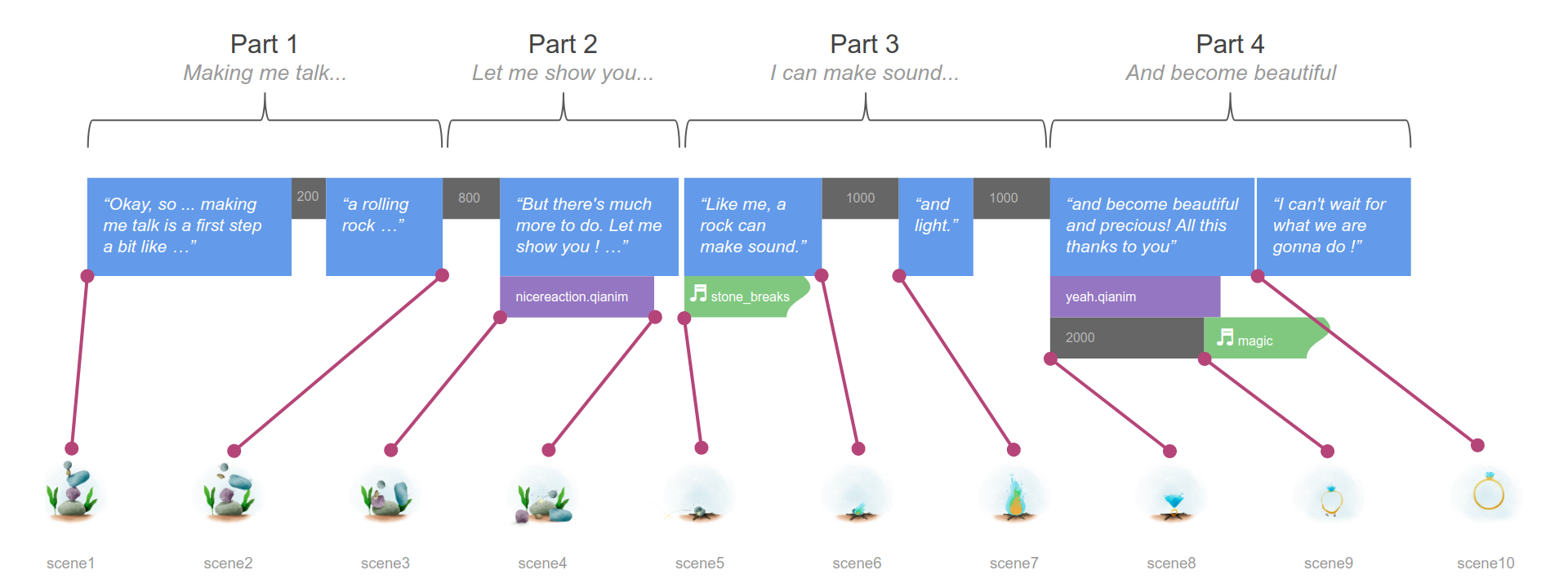

The actions of a part are simultaneous and the parts are chained one by one.
Now let’s build Pepper’s behaviour following this script!
2 Creating a basic project
As usual, create a new android project, and robotify it, as shown in Getting Started.
Since Pepper doesn’t listen to the user in this application, disable the speech bar, with setSpeechBarDisplayStrategy(SpeechBarDisplayStrategy.OVERLAY):
override fun onCreate(savedInstanceState: Bundle?) {
   super.onCreate(savedInstanceState)
   Log.i(TAG, "onCreate")
   QiSDK.register(this, this)
   setSpeechBarDisplayStrategy(SpeechBarDisplayStrategy.OVERLAY)
   setContentView(R.layout.main_activity)
}
That way Pepper will show images in full screen.
The presentation code will be in a runPresentation method in MainActivity, that will be called from onRobotFocusGained:
override fun onRobotFocusGained(qiContext: QiContext) {
   this.qiContext = qiContext
   Log.i(TAG, "Robot focus gained, running.")
   runPresentation()
}

////////////////////////
// Presentation logic //
////////////////////////

private fun runPresentation() {

   // Part 1: "Making me talk..."

   // todo next

}
One goal during this lesson will be to keep the logic in runPresentation compact and straightforward.
3. Import the necessary resources
For this lesson, you will need some image and audio files: * Download the images here and put them in your project’s “res/drawable” folder * Download the sound files here and put them in your project's “res/raw” folder