Uploading an application to Command Center
Command Center is a platform on which you can manage both your robots and applications. Thanks to this new environment, you can now upload your solutions and deploy them to your robot fleet very easily. The Command Center interfaces are presented in the first step Discovering Command Center and AppLifecycle of this lesson. Command Center website can be found at command-center.softbankrobotics.com
If you do not have access to Command Center yet, you can contact the SoftBank Robotics Support team.
Uploading an application
In order to upload your QiSDK Android application to Command Center, please follow the steps below: * Connect to Command Center * Select the Dev icon and click the ‘+ Create a new mission’ button:

- In the popup, select the ‘Android’ and ‘No’ options
- Click ‘Next’

- Select the signed APK (release version) from app/release/ my_app-armeabi-v7a-release.apk
- Drag and drop it to the Command Center window and click ‘Next’
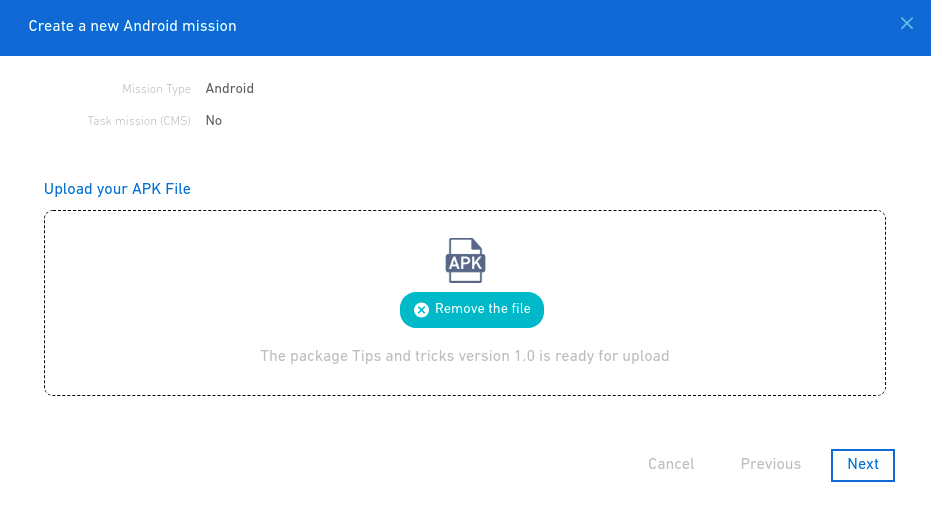
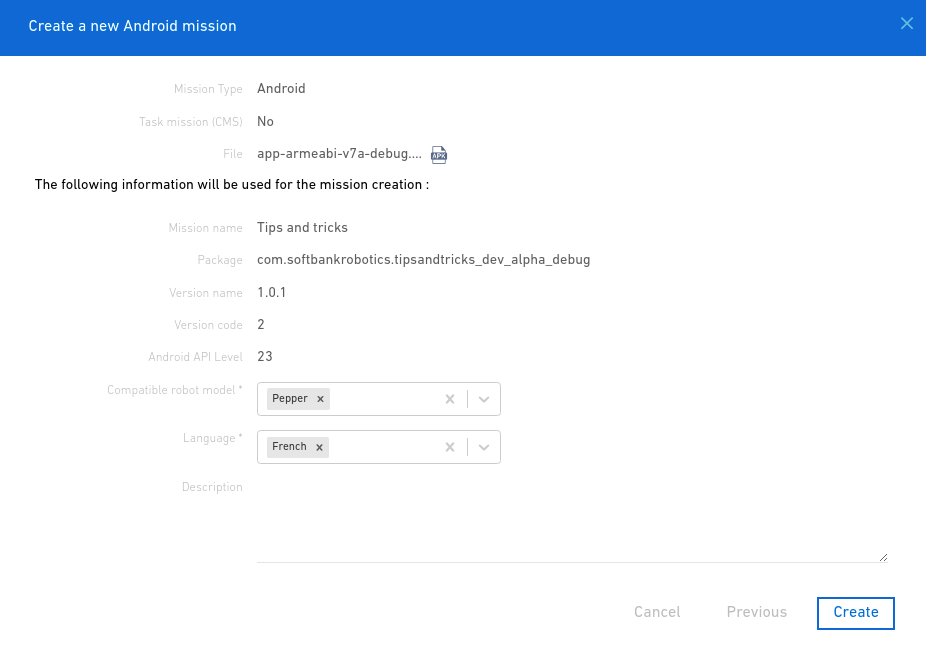
- On the next popup, fill in all the necessary information
- Click on ‘Create’
- The next popup confirms upload, Click ‘OK’
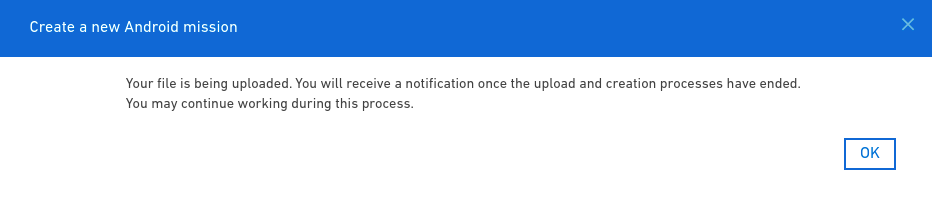
- A notification should be displayed after a short time (usually a few minutes) notifying that the app was uploaded. You can also wait a few minutes and update the web page to refresh the list of applications. It should appear on the list of apps.
Congrats! Your application is now on Command Center!
Good to know
- Some issues were reported about uploading an APK using Firefox. Using Google Chrome is recommended.
- The APK named my_app_name-x86-release.apk is for the tablet Emulator of Android Studio ONLY. Don't upload it to Command Center!
Let's learn now how to deploy an application on your robot in the next step.
Reference and Documentation
Command Center Developer Interface Upload you app through Command Center Developer Interface
Contact Support team Contact Support team to get your account to access Command Center
Online Command Center glossary Wondering what is a Mission? Have a look at the Command Center glossary
Command Center platform Access the Command Center platform