Before uploading an application to Command Center
In this step of the tutorial we will present the configuration settings to apply to your app and project before uploading it, how to sign the application and a few important recommendations.
Configure your application for build
In order to upload your built application package (APK) on Command Center, some mandatory requirements need to be fulfilled. Some optional one are not presented here such as choosing an icon for your application for example.
First you need to build a specific APK that works on Pepper tablet only. This is the point detailed below.
Configure build properties to generate a tablet only APK
In order to generate an APK for Pepper tablet only, you need to modify the properties declared in the ‘build.gradle’ file. This change will generate an APK that, when built, supports the Application Binary Interfaces (ABIs) for Pepper tablet only. All you need to know is explained below, but you can also find extra information in the article Improve Android APK installation time on Pepper published in the Tips and tricks section of Developer Center.
In your "build.gradle(Module: app)" in "android { }" section add :
splits {
   // Configures multiple APKs based on ABI.
   abi {
       enable true
       reset()
       include "x86", "armeabi-v7a"
       universalApk false
   }
}
After updating your configuration as presented above, run the Build > Make project command. Android Studio then generates two distinct APKs, one of which is for Pepper only deployment. At this step you will find the built APK in the app/build/outputs/apk/debug folder of your project.
Please be aware that only the release version of the APK should be uploaded to Command Center. The difference between debug and release version will be detailed in the next section. The APK to upload will be located in /app/release folder instead.
Pepper APK is the "armeabi-v7a" affixed APK. This is the one that works on Pepper’s tablet.
The generated APK filename contains the pattern "armeabi-v7a" and looks as follows:
$ ls app/build/outputs/apk/debug/apk
app-armeabi-v7a-debug.apk
app-x86-debug.apk
Now that you know how to build a dedicated APK, let’s see how to sign the app and build a release version for upload to Command Center. This is the second necessary action.
Signature of your application
Secondly, in order to upload your QiSDK application (APK) to Command Center, you need to have it signed. Why should I sign my Android application, you may ask? You need to sign the application mainly for obvious security reasons, such as avoiding forgery (same as on Google PlayStore).
In order to sign the application, you need to do more than just press the run button to build it. Please follow the steps below:
- Choose "Build" menu > "Generate signed bundle / APK"
- On the popup window: a. Select the "APK" option to build a signed APK that you can deploy to a device b. Click "Next"
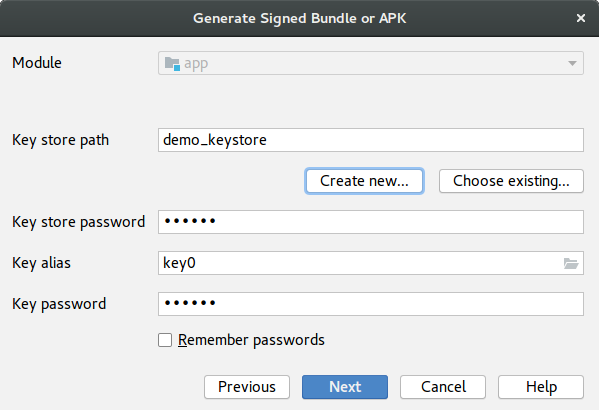
- On the next popup, enter the information of your keystore: a. Create a new one or load an existing one (keep your password and the keystore safe!) b. Click "Next"
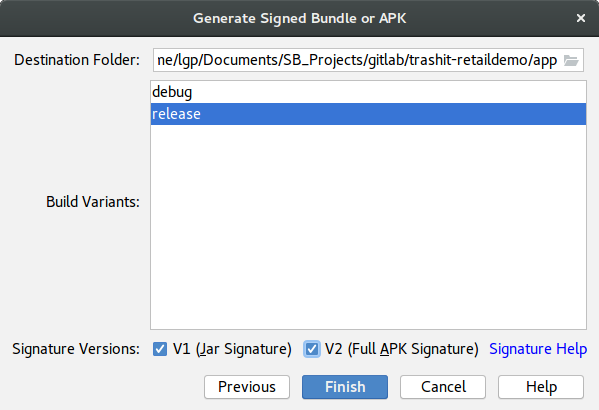
- It’s now time to set it as a release version. On the next popup: a. Select Build Variants to release b. Select "Signature Versions": V1 and V2 c. Click "Finish", this will launch the build
- After a successful build, a popup is displayed at the bottom right of the IDE (use the bottom right arrow to uncollapse popup completely)
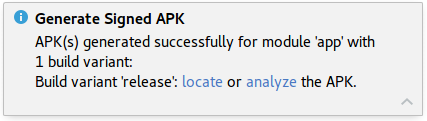
- Click locate to access the directory that contains your APK:
Release version apk is located in the project app/release directory
$ ls -hs app/release/*apk
total 28M
14M app-armeabi-v7a-release.apk
15M app-x86-release.apk
You have now a signed APK in release version ready to upload to Command Center.
Warnings on signing your application
Please pay careful attention to the following notices!
Upload of release signed version of your app only
It is mandatory to upload only release and signed versions of your apps to Command Center. If you don’t, you will not be able to upload a release and signed version using the same applicationId.
The applicationId, the unique identifier of your application, is declared in build.gradle(Module: app).
Use of different keys to sign an app
If you sign an application with a different key, even though you use the same applicationId, it will be considered as a different app on Command Center.
For this reason, remember the following: * Don’t lose the signing key * Keep the keystore secure * Don’t lose the password for the keystore or the key * Don’t forget to sign your application before the first upload
Updating and versioning of your app
Before uploading an updated version of your application to Command Center, be careful to always increase the Code Version and to update the Version Name in the gradle file.
Choose your QiSDK API Level
Not every QiSDK API Level works for every NAOqi version.
Please choose the API level you need according to the functionalities you are using and the NAOqi version of the robot you intend to deploy your app on. If you are not sure try to always use the latest NAOqi version and the latest API Level.
Latest version of Release Note is available here :
https://developer.softbankrobotics.com/blog/peppers-os-release-note-295
Let's learn now how to upload an application to Command Center in the next step.
Reference and Documentation
Set the application id How to set the application ID that uniquely identifies your app on the device and on Command Center
Sign your app for release Android Developer documentation on how to digitally sign your app
What's new on Pepper QiSDK ? Read more about Pepper QiSDK and tooling latest improvements on "What's new" notice
Pepper release notes A Reader's Digest about the NAOqi Release Note and QiSDK and relevant information for partners and developers.
Command Center online glossary Have a look at the online Command Center glossary
Contact Support team Get your account to access Command Center contacting SBR Support team
Improve Android APK installation time on Pepper Tips on how to improve Android APK installation time on Pepper.